 SPECSKET
Find the products you need all in one place.
We’re bringing product details and technical specifications together to streamline sourcing and speed up project delivery.
- 1ListVendors list products
- 2SpecifyDesigners specify
- 3AskDesigner requests a quote
- 4QuoteVendor quotes
- Sample vendor ADraft
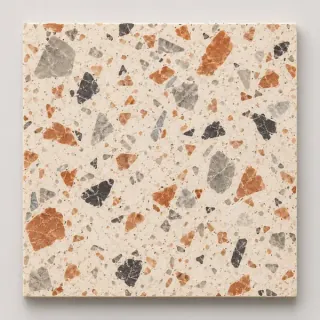

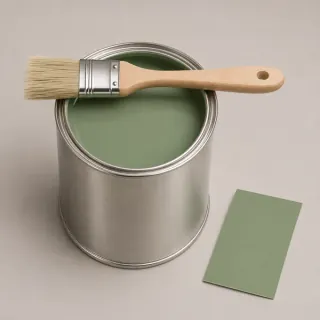
- Sample vendor BListing 0/3
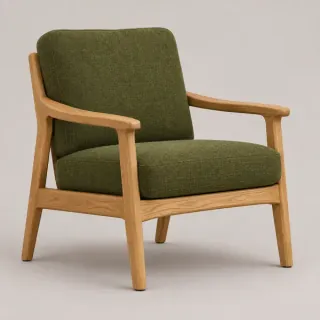
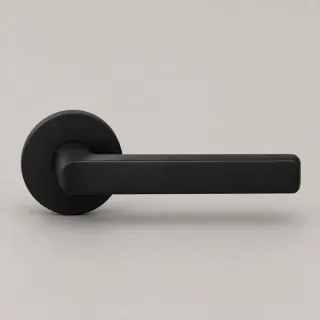
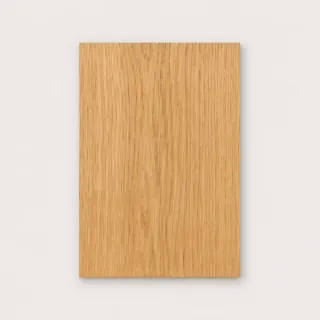
- Sample vendor CListing 0/3
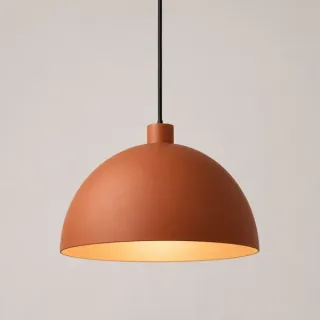
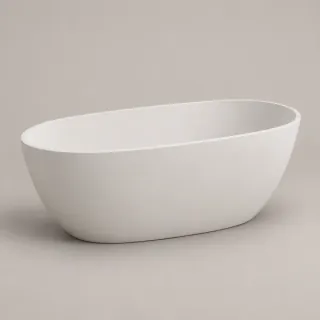
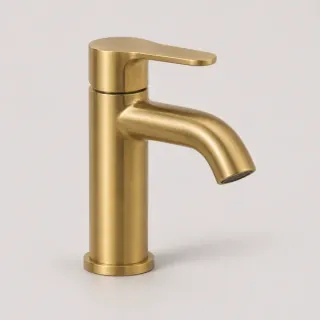
- Sample vendor DListing 0/3

No requests yet. Designers ask for a quote from their bill of quantities.
- Sample vendor A
- Sample vendor B
- Sample vendor C
- Sample vendor D
- Sample vendor A
- Sample vendor B
- Sample vendor C
- Sample vendor D
- Sample vendor A
- Sample vendor B
- Sample vendor C
- Sample vendor D
Designer 1 Marina Residence
Pick products from the Library, or
Also live: Designer 2 choosing with Bate AI · Designer 3 specifying a suite
Designer 2Harbour Cafe
Warm cafe, under AED 20k
Choosing with Bate AI (coming soon)
Designer 3Villa 12
Adding to the main suite
Cutsheets, the schedule and the BOQ appear here as products are added.
Sample products and data, for illustration. The demo plays by itself; use any control to take over.
Product catalogue
Browse by category: pick a card from the deck to see that category.
For vendors · New
Installation videos for your products.
Send a product link. Get a short 3D video led by your brand’s own character.
- Fewer mistakes on site
- Fewer support calls
- A face for your brand
SAMPLE · WASHROOM CUBICLES · 1:14 · plays muted


Ask your AI assistant
Connect your AI assistant to Specsket to find and compare products, plan a project from its brief, request quotations or run your storefront. You review every change before it is saved. Tested with Claude Code; steps for ChatGPT, Claude and Codex are on the setup page.
For designers
Interior designers, architects and procurement teams who specify and buy products.
Plan a project from its brief
Turn client documents into rooms and requirement checklists you can review.
- Example: “Read this client brief and list the rooms and the requirements for each, for my review.”
Find and compare products
Describe what a room needs and get a short, comparable list from the library.
- Example: “Find porcelain floor tiles for a hotel lobby, 600 x 600 mm, slip rating R10 or higher, and compare four of them.”
Add to your project and share
Put chosen products where they belong and produce the documents.
- Example: “Add the two I picked to the Lobby moodboard and to my product library.”
- Also for procurement
Request and compare quotations
Ask vendors for prices and lead times, then see the answers side by side.
- Example: “Ask the vendors of these three products for a quotation for 120 square metres.”
For vendors
Product companies and suppliers who sell through Specsket.
Run your storefront
Set up and keep your company page, collections and products up to date.
- Example: “Set up my storefront from this company profile and show me a preview before anything is published.”
Add products from your files
Hand over a spreadsheet, a PDF catalogue or a product page and review the result.
- Example: “Here is my product spreadsheet. Map it to Specsket products and stage them for review.”
One product record, from vendor to document
- 01
Vendors
Publish each product once, with its details and technical specifications.
- 02
Designers
Pick those products for your projects and rooms.
- 03
Documents
The product data fills the cutsheets and schedules; nobody retypes it.
Create Your Store
Publish each product once, with its details and technical specifications.